
Getting started
[f]Stream turns your Android phone into a streaming studio. Start with your camera and microphone, then add scenes, chat, external inputs, recording, or other devices when you need them.
Install the Android app
Open the [f]Stream download section for the current installation links. If Google Play asks you to join the test, join the tester group, accept the Play test, and install using the same Google account for every step. Keep the app updated while testing.
Your first stream
- Open [f]Stream and choose Stream in Modes. Allow camera and microphone access when requested.
- Connect a streaming platform, or save a manual destination with the URL and stream key supplied by your platform or receiver. A fKey Account is optional for local manual streaming.
- Check your main camera, microphone, and active scene. Open Settings → Stream setup → Quick Setup to review your destination and scene.
- Open Video → Output, choose the destination profile, and use Use recommended settings as a starting point.
- Tap Go live, select your destination, and choose Go live direct. Check the broadcast on the receiving platform as well as the phone.
- Use Stop stream when you finish. Wait for any local recording to finish saving before closing the app.
Find your settings
| Workspace | What you will find |
|---|---|
| Stream setup | Quick Setup, Ingest, and Video. |
| Capture & recording | Camera, Audio, and Recording. |
| Audience & controls | Overlays, Quick Actions, and Chat. |
| Account & app | Accounts, sync, subscription, diagnostics, and Theme. |
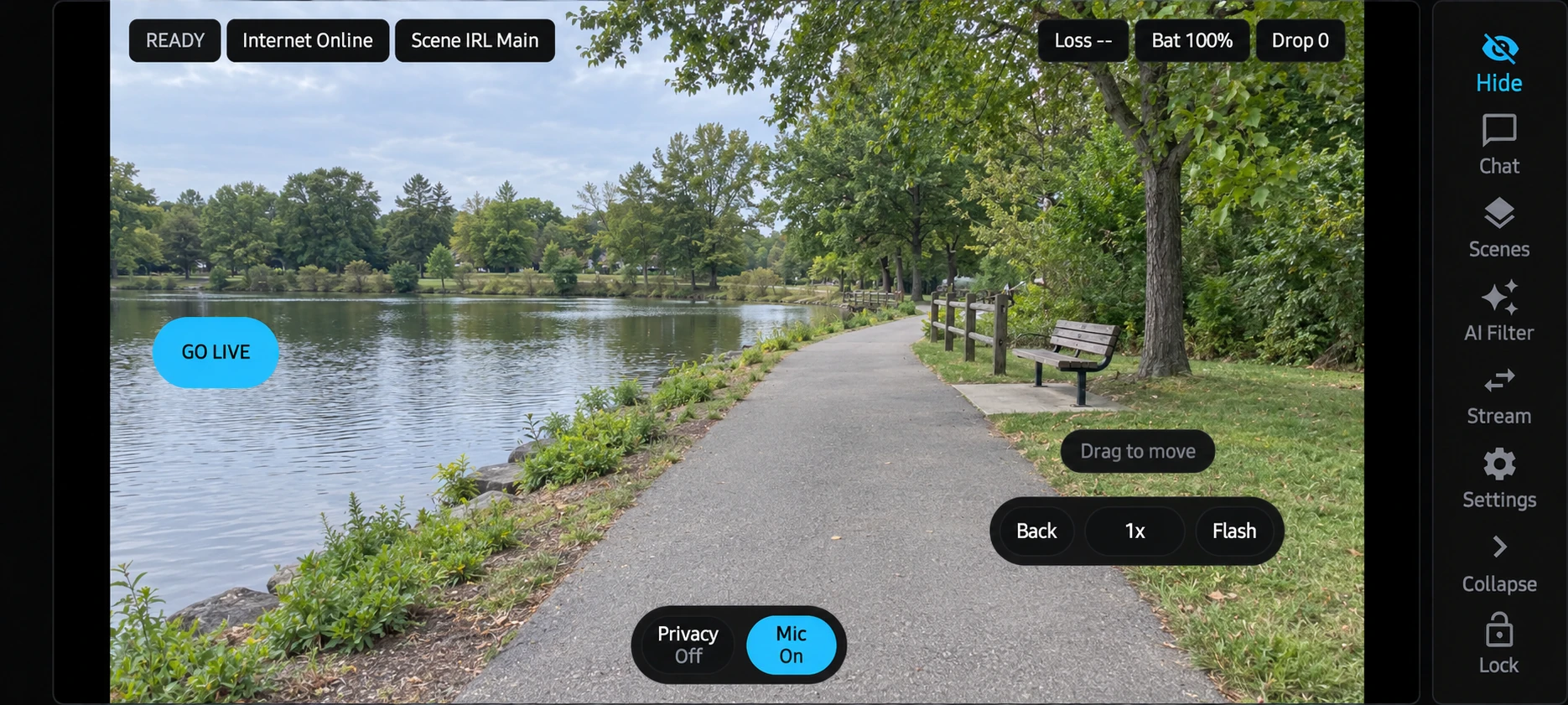
Stream setup
Connect a platform or custom destination
Connected platforms includes Twitch, Kick, and SOOP. Follow the platform sign-in flow and return to [f]Stream. If Kick shows manual setup, paste Kick RTMP URL, Kick Stream Key, and Kick Channel from your creator dashboard, then select Save Kick.
For another receiver, open Stream setup → Ingest → Custom Destinations. Give the connection a name, select its protocol, enter the destination URL and key or stream ID, and save it. You can edit saved connections, choose a main connection, or scan a supported setup QR. Keep keys and full connection QRs private.
| Protocol | Use it when |
|---|---|
| RTMP / RTMPS | Your platform supplies a streaming URL and stream key. RTMPS uses an encrypted connection. |
| SRT | You have a compatible SRT receiver and its connection details. |
| SRTLA | You have a compatible SRTLA receiver and want to test its beta network delivery. |
| WHIP | Your service supplies a WHIP publishing endpoint and any required credentials. |
MoQ is experimental and only appears in builds that enable it. If it is absent from your protocol menu, use an offered output. A Google Drive backup connection is separate from a streaming destination; use a custom destination when publishing to a service without a dedicated streaming connection.
Choose output quality
In Video → Output, select Destination profile before changing resolution, frame rate, framing, or bitrate. Fill crops to cover the output; Fit keeps the whole source with bars if the shapes differ. App orientation in Advanced changes the interface layout; output shape is configured separately.
Use Apply bitrate for a typed value, and enable Auto adapt bitrate if you want automatic adjustment. Bitrate can change live. Resolution, FPS, fit, and codec changes can require rebuilding the video pipeline; review Output change pending before using Apply now.
Twitch and Kick destination profiles have landscape and bitrate limits. Follow the limits shown for your selected destination. H.264 is the broadest compatibility choice. HEVC, higher bit depth, and HDR depend on both phone hardware and the receiving service; inspect the effective encoder and fallback information in Video → Advanced.
Direct multistream and Bond transport
The Go live chooser lets you select multiple ready destinations. Direct output sends from the phone to each selected receiver, so leave upload and device capacity for the whole broadcast.
Bond transport is an optional beta beneath compatible RTMP, RTMPS, and SRT outputs. Use Scan local [f]Relay to pair an eligible relay session, or sign in for brokered access. Enable it only after the app reports readiness. WHIP and SRTLA remain direct-only for this option.
Bond transport, SRTLA delivery, and the Share connection device role have different setup requirements. Network switching and recovery still depend on the phone, available routes, and receiver. Test your setup before relying on it during an important broadcast.
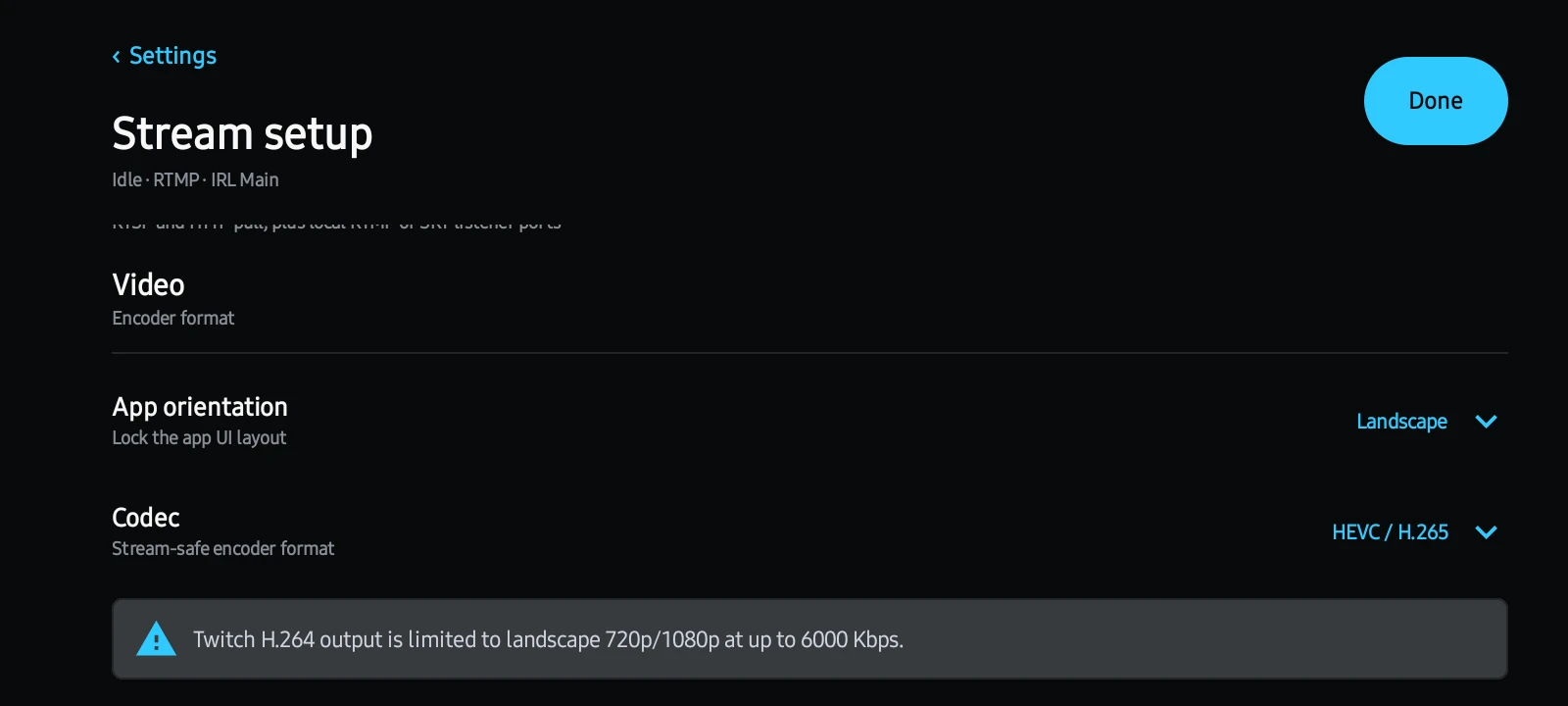
Configure video output for your destination.
View full sizeStudio & capture
Select your input
Open Stream setup → Video → Inputs. Select Main for the main feed and PiP for a second source. Use Refresh sources after connecting a camera, or Add source for a network feed.
- Phone camera / USB / UVC: choose an available device. USB cameras depend on Android permission and device compatibility.
- Screen capture: approve Android screen-sharing access. Check which content is visible before going live.
- RTSP pull / HTTP / HLS pull: enter a reachable media URL and check the source status.
- RTMP listener / SRT listener: configure the listener, then use Copy URL for your trusted sender. Connect to Wi-Fi or a hotspot and refresh the address if no local listener IP is available.
Input menus provide Restart and, where relevant, Configure and Remove. A configured source must also be receiving usable video. Check its status before selecting it for a live scene.
Build scenes
Use the scene controls to add, edit, duplicate, reorder, and switch scenes. A local scene combines your capture feed with layers. Sources include Image, Video, Input, Browser, Text, Connection status, Audio, Screen, and 3D model. Select a layer to adjust size, position, visibility, fit, and order.
OBS and hybrid scenes can also switch a scene in your OBS installation. Configure OBS WebSocket URL, the OBS password, and the selected OBS Scene, then use Refresh OBS. The phone needs a reachable OBS WebSocket connection.
Camera controls and effects
In Capture & recording → Camera, choose your main camera and available lens, zoom, and flash controls. Camera2 controls disable for USB sources. AI Filter offers Beauty controls and saved face profiles; background filters include blur, mosaic, and appearance presets. Check the active face or person target and the preview before broadcasting.
Artistic Style requires supported Snapdragon flagship hardware and an available model pack. Effects can reduce performance or pause while a face is not confidently visible. A filter preview is not a guarantee that every face or private detail will stay hidden.
Set up audio
In Audio, select the microphone source and Input route: Auto, Built-in mic, USB, or Bluetooth. Android and your accessories determine the actual route; inspect the active-input message. Use the noise meter to check Input gain, then adjust Wind reduction, Background removal, Noise gate, Echo cancellation, or Automatic gain as needed.
External mix adds scene, alert, and browser audio to the outgoing mix. Off keeps that audio out; Sync-safe and Low latency offer different buffering. Local overlay playback and microphone monitoring have separate controls. Use headphones when monitoring to avoid feedback. Speaking while muted warning can remind you when the stream microphone is muted.
Record and back up
In Recording, enable local recording and choose whether it starts with the stream. Select App storage, Movies/fStream, or a Custom folder. Match stream for the simplest profile, or choose a separate recording profile if your phone supports it. You can stop recording while continuing the broadcast.
Separate overlay audio stem saves source and overlay audio separately for editing. Set a recording duration or choose Record until storage is full. Use Recordings to open completed files in a media app.
Optional backups support [f]Stream Cloud, Google Drive, and S3. Sign in or connect/configure the chosen provider, choose Any network or Wi-Fi only, and check the backup status. Retry failed jobs and verify the remote file before managing your local copy. A successful backup does not automatically delete the local recording.
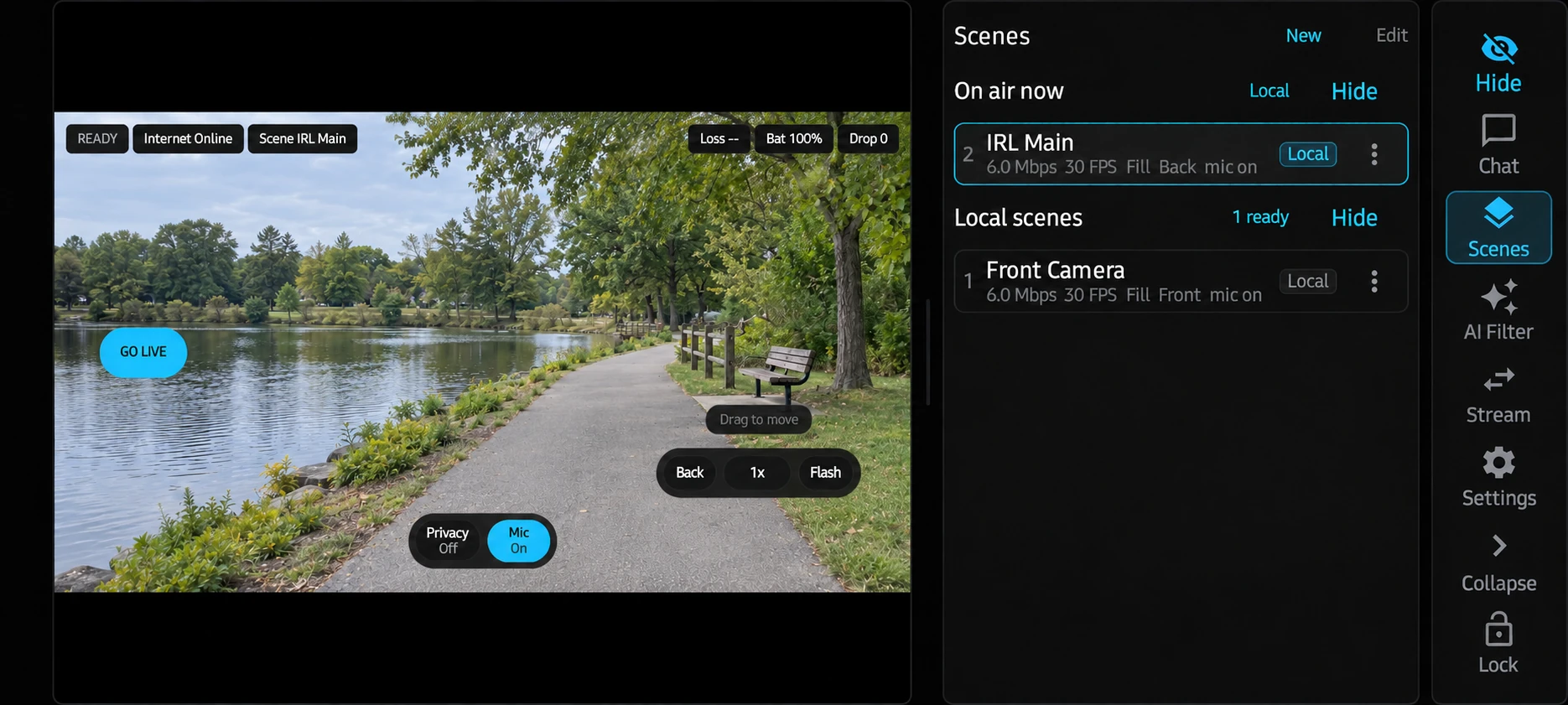
Keep your active scene and camera presets within reach.
Illustrative camera preview.View full sizeAudience & controls
Preview overlays and quick actions
Overlays configures preview information and screens such as BRB, Connection Interrupted, Blackout, and PiP. Pay attention to Show in preview and Visible on video feed: a control visible on your phone is not necessarily included in the broadcast.
Customize screen text, colors, opacity, and placement. Quick Actions chooses preview shortcuts, button size, and movable camera controls. Hardware shortcuts can map volume buttons to stream actions; review those mappings before enabling them.
Chat, alerts, and speech
Chat controls message visibility, timestamps, emotes, badges, and bot-message filtering. Use Test preview to check styling locally. Connect Twitch, Kick, or SOOP for the relevant chat; custom destinations can have a separate chat target. SOOP uses the linked account's broadcast chat.
Native Twitch, Kick, and SOOP events can appear in chat or trigger configured alert overlays. Streamlabs and StreamElements integrations and browser widgets offer additional overlays; connect the provider or add its widget source and check source audio separately.
Under Text to speech, choose your reader and filtering settings. Emergency mute stops queued speech. Dedicated Chat mode also offers SOOP preferences for mentions, speech, gifts, and subscriptions.
Sending, replies, and moderation depend on the platform, authenticated account, permissions, connection, and build. Twitch and SOOP can offer sending when enabled; Kick chat is read-only. Use the availability message beside the composer or action to see what is required.
Auto Server
Auto Server sends one upload from the phone to a cloud relay, which forwards it to the selected supported platforms. It requires your fKey Account, service availability, and enough credit for the quoted start.
- Connect your platforms and sign in to [f]Stream.
- Open Go live, enable Start Auto Server, and select your supported destinations.
- Use Add credit if required. Review the checkout amount and credited amount, then return to the app.
- Review the server readiness and pricing shown before confirming Start Auto Server & go live.
Normal streaming starts the server through Go live and stops it when you end the stream. In Settings → Auto Server, advanced options open Server settings. Streaming app links, Manual server controls, and Diagnostics are collapsed until expanded.
Start server only prepares a server without starting the phone camera. External publishing and OBS links require their corresponding feature to be available. If you start a server manually, check its state and use the end-server action when finished.
Available locations, outputs, prices, and account spending limits come from the service. A credit balance does not guarantee a server can start. Review the current quote and any availability message in the app.
Prepare Auto Server Screens
Open Web Studio and choose Auto Server Screens when offered to design Starting Soon, BRB, Connection Interrupted, and Ending screens. Add text, images, or video, arrange the layers, and preview the design. Chosen video audio can replace phone audio while the prepared screen is used.
The web screen editor is being rolled out. If it is not offered in your account, use the available screen controls in Android.
After the design saves, open the signed-in Android app with streaming and recording idle. The phone syncs, prepares, and uploads the screen. Wait for preparation to complete before relying on it. Saving a design does not activate it during a broadcast.
Modes & web tools
Choose a device role
Modes groups roles under On this phone and With other devices. Stop active output and recording before switching roles. Expand Connect devices for Production Session setup. Selecting a role opens its workspace; it still needs the prerequisites shown there.
| Mode | Stage | Purpose and prerequisites |
|---|---|---|
| Stream | Available | Phone studio and live output. Requires usable capture and a destination. |
| Chat | Preview | Read connected chats and use available speech or creator actions. Requires an active signed-in account or joined session and platform connections. |
| Record & clip | Preview | Record a remote Session Program and mark moments. Requires an account Production Session, ready source, paid Auto Server, and usable recording storage. |
| Remote control | Preview | Control a selected session device. Requires authenticated session access and permission for the requested action. |
| Monitor | Preview | Inspect another device's telemetry and available confidence view. Requires a session target and current remote data. |
| Relay video | Preview | Receive and forward external video. Requires an account Production Session, active Auto Server, listener setup, and compatible media. |
| Share connection | Experimental | Contribute another phone's internet. Requires an account session, paid relay, shared Wi-Fi side link, and independent cellular, Ethernet, or USB internet. |
Preview and Experimental roles can be selected even when runtime prerequisites are missing. Record & clip exposes rolling replay and Save replay only when enabled and ready; it is not a promise of automatic edited-clip publishing. Share connection excludes VPN routes and reserves shared Wi-Fi for the phone-to-phone link.
Nodes may use the role names Capture for Record & clip, Control for Remote control, Relay for Relay video, and Bond for Share connection.
Work from your fKey Account
- Web Studio edits saved scenes, sources, overlays, and settings. Check the save status, then sync your phone. Its camera view and status indicators are illustrative; use your phone to start a broadcast.
- Nodes shows registered devices and Production Sessions. Create or select a session, assign device roles, and check that each phone has applied its assignment.
- Control Room shows checked-in device status and provides approved remote production controls. Select a device, issue an available command, and inspect the returned status.
- Connections manages linked providers; Auto Server Screens, when offered in Web Studio, edits prepared interruption designs.
Assign devices and follow command status
Sign in on a phone so it registers in Nodes, then choose a Production Session and Requested role. Use Apply when safe and check the device's Current assignment. Pending means it is still waiting; Blocked means a prerequisite needs attention. Live or recording devices wait until it is safe to change roles.
In Control Room, Viewer access can request status, Moderators can use available microphone and interruption controls, and Producers can select scenes and request starts. Owners manage crew and can stop the stream. A start request needs approval on the phone; queued commands still need to be applied. Check for applied, blocked, or expired status before assuming a command succeeded.
Owners can create copyable invite links with Viewer, Moderator, or Producer access; creating a link does not send an email. Grant the access needed for the work and revoke it when finished. An offline device or an unavailable action cannot be controlled simply by saving settings in Web Studio.
Account & app
Sign in and sync
Open Account & app → Accounts → Sign in to [f]Stream. Start sign-in, open fKey Labs, and approve the displayed device code using your fKey Account. Platform logins and the fKey Account serve different purposes; connect both when your workflow needs them.
Automatic App Sync keeps supported settings and scenes aligned with Web Studio. Check the last successful sync and any error. Use Sync now or Retry phone edits when offered. After web changes, open the signed-in phone with both streaming and recording idle so it can apply the saved workspace.
This device Node sync handles that phone's role and Production Session separately. A saved web assignment still needs to reach the device. QR stream setup can share or import supported settings; treat QRs containing connection details as private.
Subscription and credit
Core, Ad-free, and Creator are account plans. Open Subscription on the website, or use Subscribe / Manage subscription in Android. Sign in with the same fKey Account and use Refresh access if an updated plan has not appeared.
Restore legacy Google Play purchase is for an existing Play purchase. Auto Server credit is a separate balance used for server usage; check its current balance and payment status in Auto Server. Account plan limits and service availability are shown by the account service.
Manage account access
Accounts includes current sessions, sign-out controls, Other devices, and Export data. Review account settings for account management. Android account deletion requires confirmation; read its removal summary carefully before using Confirm delete. Theme changes the app accent, and advertising privacy options appear when applicable.
Troubleshooting & support
Google Play says the app is unavailable
Check that the account used to join the tester group is the same account used for Play test opt-in and installation. Return to the download links and complete the test steps in order.
Go live says no destinations are ready
Open Settings and connect a platform or save a custom destination. Finish manual setup if requested, check the URL and key, and select a ready destination in the chooser. A platform login alone may not finish its ingest setup.
The preview is black or an external source is missing
Check camera or screen-sharing permission, choose the intended Main source, and inspect its status in Video → Inputs. Refresh cameras, reconnect USB devices, or restart the affected network source. For a listener, refresh the local IP and verify the sender can reach the phone.
Audio is missing, distorted, or feeding back
Check mute, Input route, the microphone meter, and gain. Reconnect the audio accessory if Android selected another route. For missing alert or browser audio, check the source audio and External mix. Use headphones for monitoring and test playback before the broadcast.
The stream drops frames or reconnects
Check upload connectivity and phone heat. Lower bitrate, resolution, or FPS, and reduce demanding sources or effects. Review the destination's effective codec and limits. When enabled, Connection Interrupted recovery can show a recovery screen while reconnecting; it cannot guarantee uninterrupted receiver output.
Auto Server or a device mode will not start
Read the readiness message. Check account sign-in, session membership, service availability, credit, source, and storage as applicable. A selected role or available credit alone does not satisfy every prerequisite. For a pending checkout, use Check payment; use Cancel checkout if you want to cancel that checkout.
Web changes or a subscription have not reached the phone
Use the same fKey Account on both devices and confirm the web save succeeded. Open [f]Stream, check Automatic App Sync, and retry if needed. Let active streaming and recording finish for changes that need an idle phone. For subscription access, use Refresh access.
A recording or backup is missing
Check the selected recording location and wait for finalization. Re-select a custom folder if access was lost. Inspect the backup status, provider connection, storage allowance, and network policy, then retry a failed job. Verify completed local and remote files in their respective locations.
Export diagnostics
Open Settings → Account & app → Accounts → Diagnostics → Export diagnostics, then choose a save location. The report includes app and device information, stream statistics, and recent crash details. It excludes raw logs, saved settings, and destination URLs.
When reporting a problem, include your app version, phone model and Android version, the mode or protocol involved, what you expected, what happened, and steps to reproduce it. Attach diagnostics and a screenshot when useful. Hide stream keys, private connection QRs, and personal information in screenshots.
Need a hand?
Start a private support case for your fKey Account or [f]Stream setup. Join Discord for community discussion and feedback.
Start a support case Community on Discord